

Sony’s PS4 and PS4 pro is an ultimate entertainment center for whole family but not every piece of content is suitable for every age group. And that’s why Sony provided the feature of parental control on PS4 and PS4 pro.
But first, you must understand the appropriate parental control level that match up the age of your child.
| Player’s Age | Under 3 | 3-6 | 7-11 | 12-15 | 16-17 | 18 and over |
| PS4 parental control setting | 1 | 2 | 3 | 5 | 7 | 9 |
You can also apply parental control levels to films.
| U – Unrestricted Public Exhibition | UA – Unrestricted Public Exhibition -but with a word of caution that Parental discretion required for children below 12 years | A – Restricted to adults | S – Restricted to any special class of persons |
Procedure to Setup Parental Control on PS4 & PS4 Pro
Step 1: Access Parental Controls Menu
1. First, from your PS4’s Home Screen, press up the d-pad to launch the Function area. Now, select Settings > Parental Controls.

2. On the Parental Controls screen, you will see two options: Restrict Use of PS4 Features and Sub Account Management.

3. Select Sub Account Management first if you do not want to restrict content on your PS4 for all users.
Step 2: Create Sub Account
1. On the Sub Account Management screen, select Create New Sub Account and accept the terms of use.

2. Now, select the Language and Date of Birth for the Sub Account user (i.e. your child).

3. Let your child enter his/her Email Address and Password if your child is old enough to have his/her own email address.
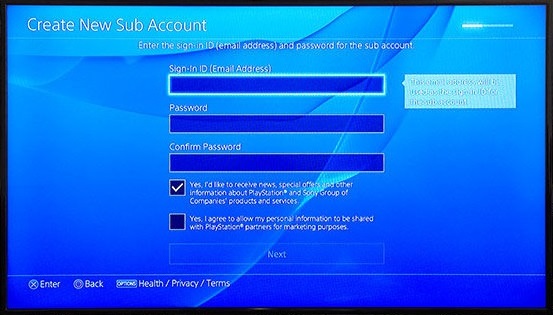
4. Lastly, select Location. Note that it matches the one you selected for your own profile.

Step 3: Block and Allow Content
After setting up the location preferences, on the next screen you will be able to select functionalities that you want to allow or block. You can choose whether your child play online, download user-generated content or let other people use their PSN accounts on your PS4, and other things.

Step 4: Set Access Restrictions
1. After completely setting up the Sub User account, return to Parental Controls menu and select Restrict Use of PS4 Features. Here, you can select from various options on what content your child can access.

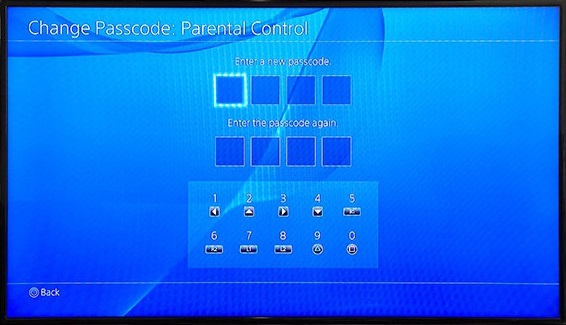
2. For the first time you need to set a 4-digit passcode to set parental controls level. The default passcode is 0000 and you can change it by selecting Change Passcode (Go to, Settings > Parental Controls > Restrict Use of PS4 Features > Change Passcode).
3. Now, you can restrict Games, Applications and Downloaded Films in parental control on PS4 and PS4 pro (Go to, Settings > Parental Controls > Restrict Use of PS4 Features > Application), as per the various levels (Level 1-11) according to your child’s age. By default it is set to 9.

4. Similarly, you can set it for Blu-Ray Movies in parental control on PS4 and PS4 pro (Go to, Settings > Parental Controls > Restrict Use of PS4 Features > Blu-Ray Disc). By default it is set to Allow, that means there are no limits. Also remember that some Blu-Ray movies do not have age ratings.

5. Also, you can restrict a DVD content by setting the restriction levels in parental control on PS4 and PS4 pro (Go to, Settings > Parental Controls > Restrict Use of PS4 Features > DVD). By default it is set to Allow, so change it to suit the age of your child.

6. To restrict your child’s access to the Internet Browser, select Do Not Allow option. Go to, Settings > Parental Controls > Restrict Use of PS4 Features > Internet Browser.

7. You can restrict other PSN users from logging in to your child’s account, go to Settings > Parental Controls > Restrict Use of PS4 Features > Select [New User] and Log in to PS4 and select Do Not Allow.

8. To restrict Login to other local user accounts on your PS4, first from your PS4’s Home Screen, press up the d-pad to launch the Function area, then go to Settings > Users > Login Settings > Passcode Management. Now, set a passcode to restrict access to your user profile.
You can also setup an account for each child by using the feature of parental control on PS4 and PS4 pro.
Also Read: iPhone 6: An Easy Fix to Error 53 Is Now Available!
