

What is DHCP?
Dynamic Host Configuration Protocol, DHCP is a client/server protocol used to assign an IP address to a computer or device that has been connected to a network automatically.
The DHCP is controlled by DHCP server that dynamically distributes network configuration parameters such as IP addresses, for interfaces and services.
DHCP is also used to configure the subnet mask, default gateway, and DNS server information on the device.
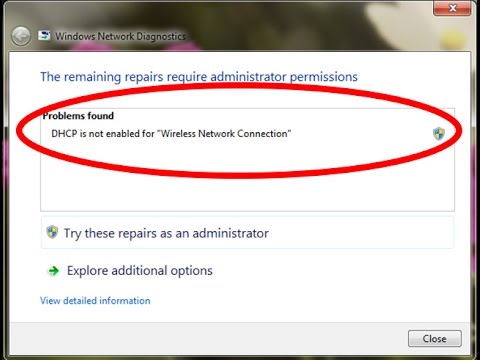
How DHCP Works?
A DHCP Server is used to issue unique IP addresses and automatically configure other network information. In most home and small businesses, the router acts as the DHCP server. In large networks, a single computer might act as the DHCP server.
In short the process goes like this:
- When a client needs to start up TCP/IP operations, it broadcasts a request for address information.
- The DHCP server will not reallocate the address during the lease period and will attempt to return the same address every time the client requests an address.
- The client can extend its lease or send a message to the server before the lease expires it that it no longer needs the address so it can be released and assigned to another client on the network.
Why use DHCP
DHCP is useful for automatic configuration of client network interfaces. To connect to an IP network, a host needs an IP address. To communicate with other networks, it needs to know the default gateway address and the subnet mask for the local network.
To perform name resolution, a host needs to know the name of a DNS server in advance. DHCP provides all of this information dynamically. For IP based networks, there are three ways to get an address: configure it manually, retrieve it via BootP, or retrieve it and other values via DHCP.
Four key benefits to DHCP:
- Centralized administration of IP configuration
- Dynamic host configuration
- Seamless IP host configuration
- Flexibility and scalability
How to fix DHCP not enabled for wireless internet connection for windows 10(Best solution)
The working of DHCP is straightforward. If you have a DHCP server installed and configured on your network, all DHCP enabled clients can obtain IP addresses and related framework parameters every time they start and join the network.
However, sometimes you may experience trouble in connecting to the internet. After trying all troubleshooting steps, if you also confront the message of DHCP not being enabled, try out the below procedure to see how to fix DHCP not enabled in windows 10.
Step 1:
Bring the core area of all the settings, the control panel and chose Network & sharing center.
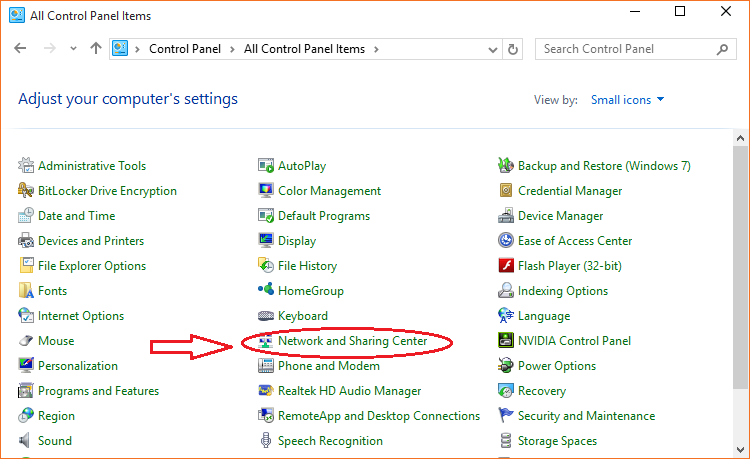
Step 2:
Click change adapter settings link visible under Networking and sharing center screen.

Step 3:
Identify your wireless connection, right click on it and select properties to open the wireless network properties.
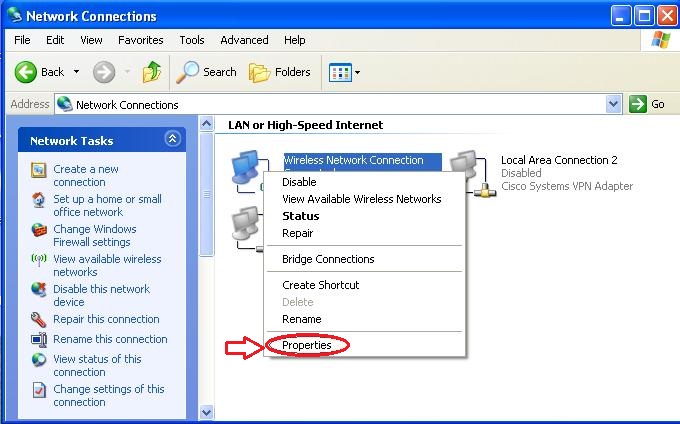
Step 4:
On the Networking tab of the wireless Network connection properties windows, select Internet Protocol Version 4 (TCP/IPv4) and click on properties.
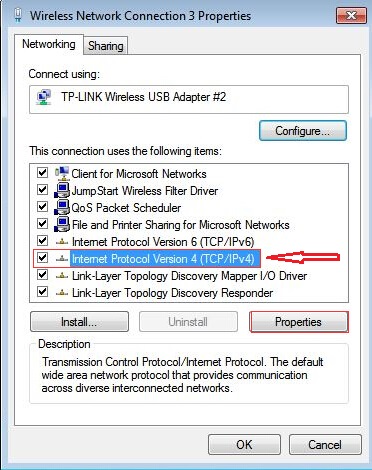
Step 5:
When done, Internet Protocol Version 4 properties box will pop up. Now, to turn DHCP on. For this purpose, you need to check the radio boxes against –
- Obtain an IP address automatically- Upper part of ‘General Screen’.
- Obtain DNS server address automatically- Lower part of the ‘General screen’.

Windows 10 will be now able to retrieve the IP address from the DHCP server
If you want to disable DHCP and enter you network settings instead, select the Use the following IP address option and enter values for IP address, Subnet mask, and Default Gateway.
Also, select the Use the following DNS server address option and enter a value for Preferred DNS server. You can also enter a value for Alternate DNS server if you want.
Call us: +1(855)899-6051
Or
Mail us: info@officialtechsupport.com