

Is your windows firewall creating issues?
If windows firewall creating issues in your system, you must look to solve it in the first go as it can harm your Critical Data.
This issue may arise due to number of reasons and we shall discuss the numerous troubleshooting techniques for the firewall not working issues.
Need support for all your firewall issues? We’ve have got you covered!
What issues you can fix by going through this blog
- Windows Firewall isn’t the default firewall
- Windows Firewall doesn’t start
- Windows couldn’t start Windows Firewall (service specific error 5 (0*5))
- Remote assistance isn’t working because it is blocked by Windows Firewall
- You are unable to access shared files and printers because sharing is blocked by Windows Firewall.
- BFE Service is missing.
- Firewall won’t start (Error Code 0x8007042c)
Runs On
Window 7
Window 8
Window 8.1
Window 10
Diagnose And Fix Windows Firewall Issues:
You may get a security warning telling you that the windows firewall is turned off and you are unable to restart it….or you may cannot access shared files and printers.
Step#1:For fixing number of issues related to windows follow these usual steps. The system file checker will be executed to check if windows could fix it by itself.
- Go to “~start “under search type in “~CMD”.
- Right Click and “~Run as Administrator”.
- Thereafter, type SFC/SCANNOW and then press Enter.
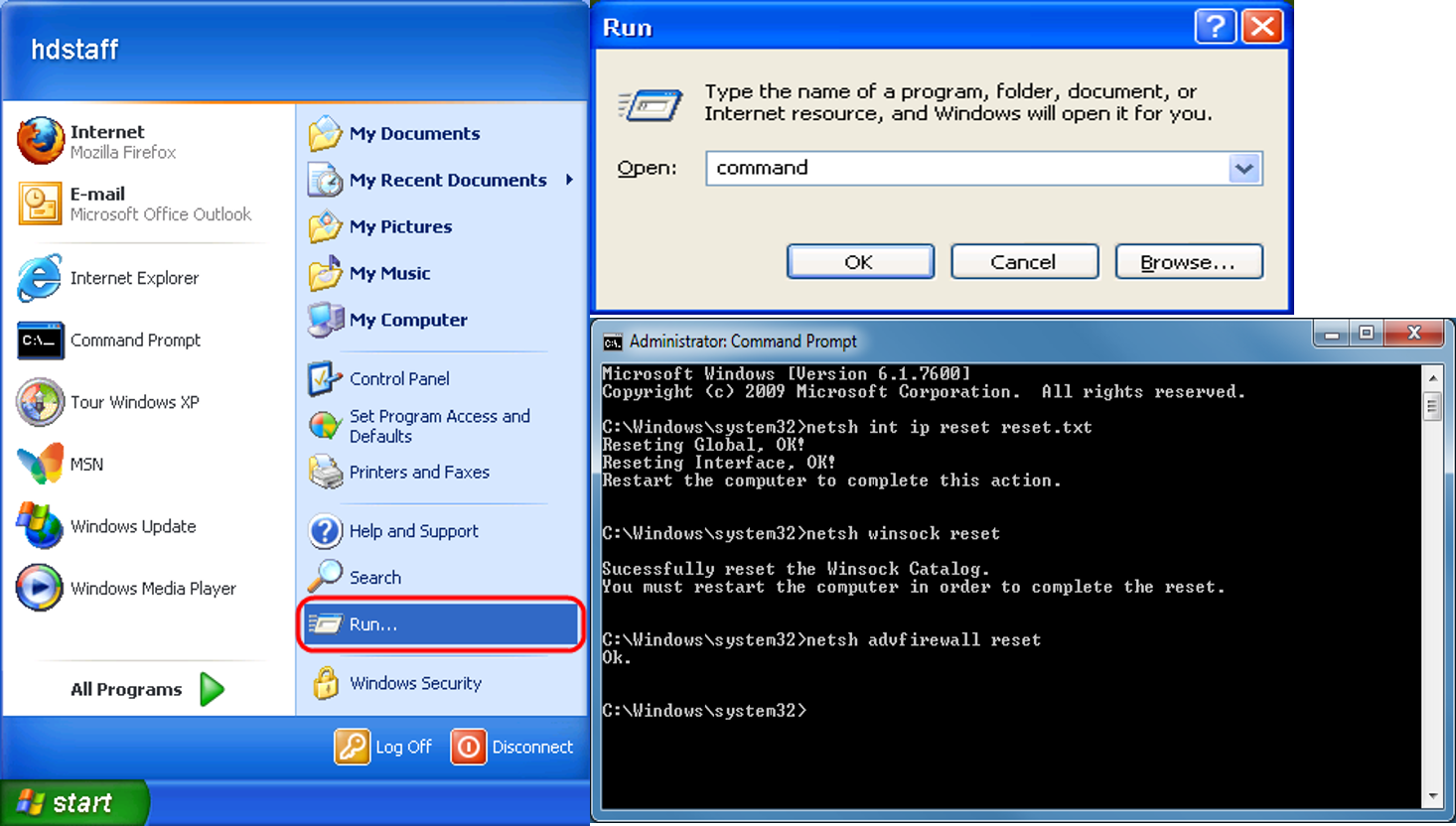

Step#2: There might be a permission related issue and hence, we may have to give enough permission to those keys. Follow the given steps:
- Under the search bar from start, type”~Regedit”.
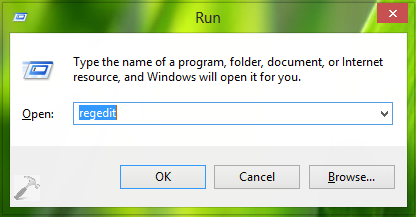
- You might have type the administrator password.
- Right click on Export after going to Computer.
- Type “~Regbackup” under the file name type and save it.

Thereafter,you have to give permissions to the displayed keys in this section.
- Right click on the key, and chose Permissions.
- Choose Add and type “~NT SERVICEmpssvc” in the “~Enter object names to select fields”. Click on “~Check Name “.
- Choose Ok and then click on Add Again.
- Select the account which makes appearance in the list, and add the proper permission to it.
- Put a check mark on Full control that occurs under the “~Allow section”.
- When the process is finished, Reboot.
Step#3: Windows Firewall not working issues can also arise due Malware that is hidden inside the device, and therefore complete anti-virus scan is mandatory.To detect and remove malware from your PC,follow the instruction from our blog at Link
There is also available secondary stand-alone scanners that include freeware malware bytes or the Microsoft safety scanners in order to run your complete system scan in the Safe Mode, as this serves as an additional option.
Step#4: If your system is still unable to detect anything, you may have to run a Repair Install using Windows Troubleshooter.
This is an Alternate Option to sort the firewall not working issue. The Microsoft Automate Troubleshooting Services helps you to scan your computer and helps you find a root cause of the problems, and then also fixes them for you.
Error code “0x8007042c” found while starting windows firewall?Execute essential steps to to resolve:-
If you receive the error message” 0x8007042c”, it may be due to the following reasons:-
- Your Firewall service is disabled
- Your system is infected with malware
You need to Scan and remove the malware to resolve this issue. We strongly recommend you to scan your computer for viruses or malwares, if you haven’t done. You can do this by Microsoft Safety Scanners. Follow below EASY steps:-
- Go to the Microsoft website: Microsoft Safety Scanner
- Click Download Now. Download and install the Microsoft Safety Scanner by following below instructions. When you are prompted, save the file on the desktop.
- Go to your desktop and double-click the Microsoft Safety Scanner icon, when the installation is complete. It may be listed as msert.
- Click the Accept all terms of the preceding license agreement check box, and then click Next two times.
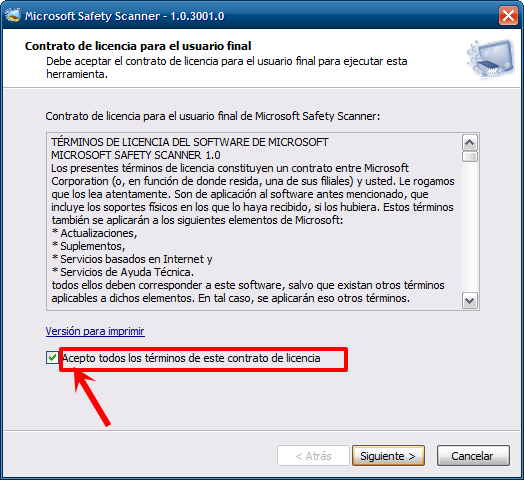
- Click Quick Scan, then click Next.
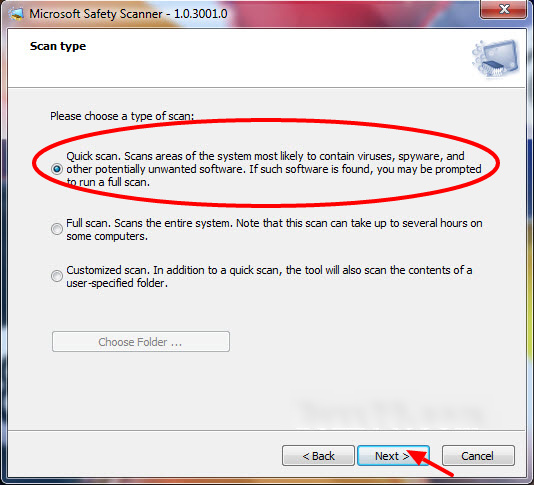
choose scan type - The Microsoft Safety Scanner will scan your computer and remove all malware.
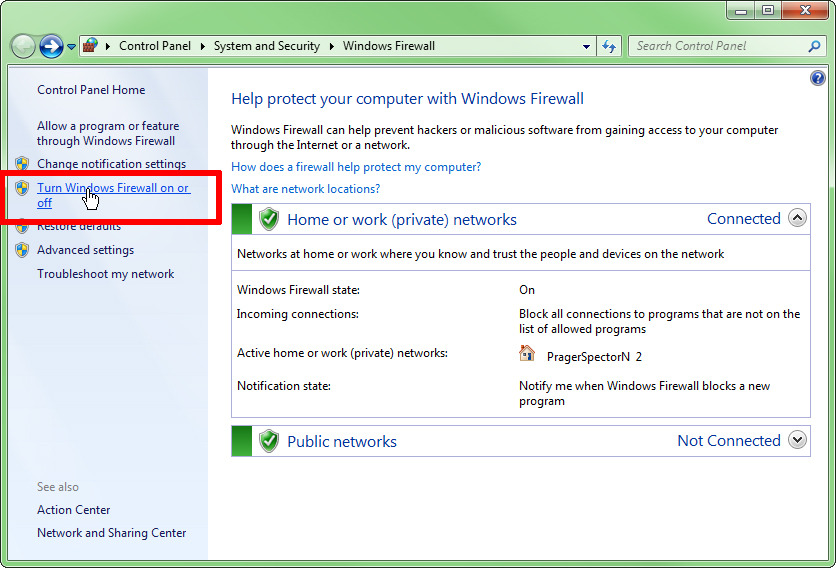
- Click Start, and then type Windows Firewall in the Search programs and files box (Windows 7) or in the Start search box (Windows Vista).
- Click Windows Firewall.
- In the navigation pane of Control Panel, click Turn Windows Firewall on or off.
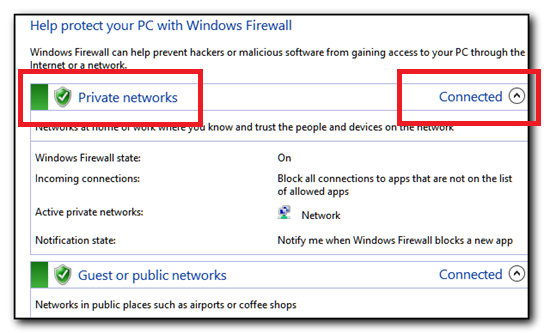
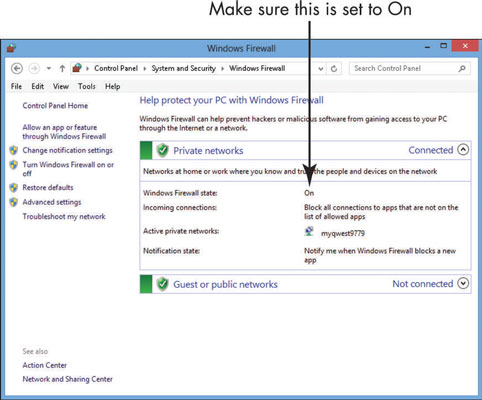
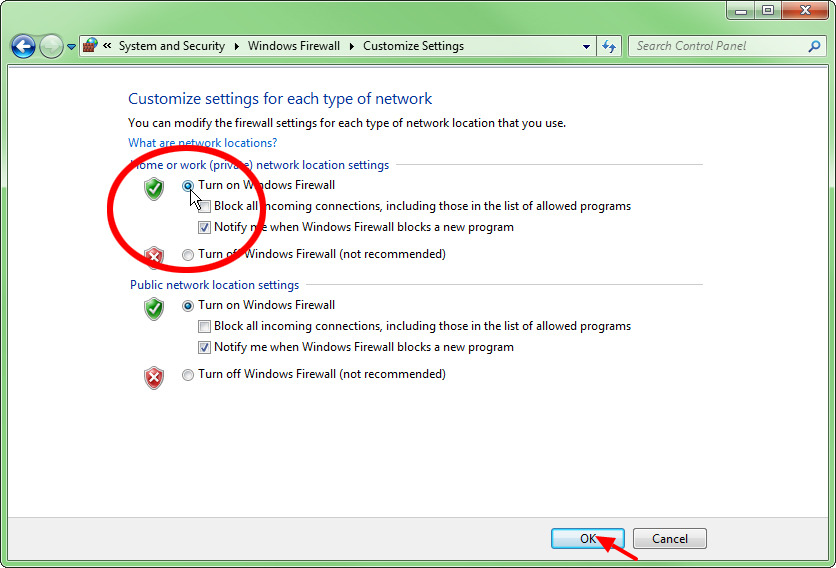
- Click Turn on Windows Firewall for each network location, and then click OK.
Our Skilled, Experienced and Professional Technicians will support you instantly.

Interested in letting our experts solve your IT issues for you?
Get a free, no-obligations consultation with one of our experts today!
Call us at (855) 899-6051


