

Your landing on this page is a clear indication that your MOV video files have got corrupted or damaged and thus you are in seek of an easy way to repair your damaged QuickTime MOV videos.
Well then hereby its informed that fortunately you have landed onto the most appropriate web page for you.
Yes!!
Here in this page, we have provided guide that will show you proven working solutions to repair corrupted or damaged MOV videos files. Additionally, here this guide also include third-party MOV video repair software for Windows and Mac. With this software, we guarantee you that you will fix corrupted MOV video files within just few clicks.
Easy Solutions to Repair Damaged or Corrupted MOV Files
Solution #1. Repair Corrupt MOV Video by using QuickTime 7 Player
Solution #2. Repair Corrupt MOV files by using VLC Media Player
Solution #3. Change File Extension of the MOV Video File
Solution #4. Repair Corrupted or Damaged MOV Files by using Video Repair Tool
One of the most effective methods of repairing MOV files is to utilize powerful Video Repair Tool like Stellar Phoenix MOV Video Repair Software.
This MOV Video Repair Software comes equipped with number of powerful as well as enhance algorithmic skills. Via them, it repairs MOV video files corrupted or damaged because of any issue like compression issues, broken file header and etc.
Some of the comprehensive features of Stellar Phoenix MOV Video Repair Software are:
- Easily and very quickly recovers damaged, corrupted, broken, unreadable and unplayable videos.
- Repair MOV files which are saved in PC/Mac hard drive, memory card, external HDDS, USB drives or any other media storage devices.
- Repair MOV videos which are recorded on Camcorder, DSLRs, Drones, GoPro Camera, iPhone, iPad, iPad Touch or downloaded from Internet.
- Preview repaired MOV files for free within the preview screen of the software.
- 100% safe, easy and secure to use.
Free Download Stellar Phoenix MOV Video Repair Software
Download Stellar For Win Download Stellar For Mac
More detailed information on how to use Stellar Phoenix MOV Video Repair Software to repair corrupted MOV video files are discussed below at the bottom of the blog. So, continue reading…
Now this was just the glimpse of one of the solution to fix corrupted MOV video file.
Before moving into detailed solutions, we think it’s important for you to know the main causes liable behind the corrupted of MOV Video Files. So, let’s moves towards it….
Causes: What Makes MOV Video Files To Get Damaged, Corrupt or Broken
- Corruption in MOV file header.
- Interruptions while transferring videos files from one computer to any device or vice versa.
- Playing video in incompatible or unsupported media player,
- Using untrustworthy tool for recovering deleted or corrupted MOV video files.
- Lost Internet connection, network error, power failure while downloading or uploading MOV video files.
- Converting video file format frequently and very quickly.
- Errors in MOV file compression because of untrustworthy compression tool.
- Unexpected or sudden exit of QuickTime, VLC or several other apps while the video file is playing.
- Incomplete or improper read-write operation might lead to MOV video file error.
- Abrupt ejection or improper ejection of camcorder or any other removable storage media while transferring/moving/copying MOV videos.
In either of the above causes, your MOV files can get corrupted, damaged or become unplayable.
Sometimes MOV video corruptions might also include audio video synchronization issues, codec error and etc.
Despite all this, you’re not required to worry about it at all, as here we bring few effective solutions which you can follow to repair corrupted/damaged MOV video files.
Solutions to Fix Corrupted/Damaged MOV Video Files
Below mentioned fixes to corrupted MOV video files are proven working. So, implement them in the manner they are sequenced, so as to get the proper results.
Solution #1. Repair Corrupt MOV Video by using QuickTime 7 Player
QuickTime 7 Player include feature to fix not very much damaged MOV videos automatically. If an MOV file is severely damaged, this player will display the black screen error message.
QuickTime 7 do comes equipped with feature that allows you to check the properties of the damaged videos.
To check properties of damaged or corrupted MOV video files, execute the set forth steps:
Launch QuickTime player and then Show Movie Inspector from Windows. This will provide you with the details of the video file like video format, resolution information, playing fps, data size, duration, data rate and etc.
In case if the MOV file is corrupted, as mentioned above, QuickTime Player will show black screen error and the ‘Movie Inspector’ will display the video details in the video file metadata.
Solution #2. Repair Corrupt MOV files by using VLC Media Player
VLC media player includes feature to repair corrupted, damaged, broken or even unplayable video files.
So, next time whenever when you play your MOV video, and the VLC player ask you to repair corrupted/unplayable or broken videos, do nothing, just simply tap ‘Yes’. And after this follow the onscreen instructions to fix the video.
Alternatively, you can follow the below mentioned steps for MOV Video Repair:
- Firstly launch VLC Media Player. Now go to ‘Media’ and then click ‘Convert/Save’.
- Click ‘Add’ to browse and then select the MOV video you want to repair.
- For editing or checking profile setting, check-mark the box ‘Show more options’ and then click ‘Convert/Save’.
- Once the convert Window opens, under ‘Settings’, select the appropriate codec from the drop-down list provided.
- Give the name to the file and then browse the desired location to save the file. After this, click ‘Start’ button.
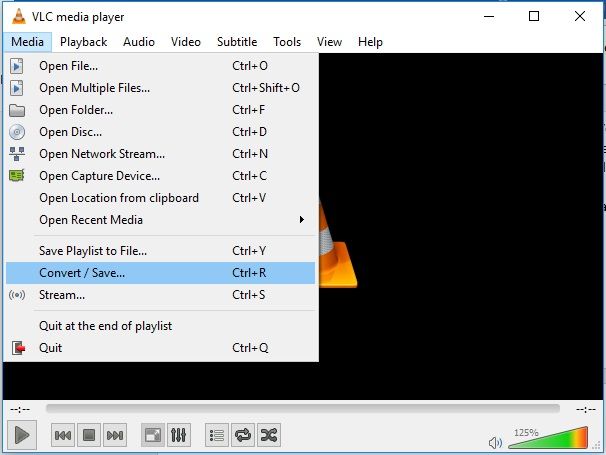

This solution will for surely help you to repair corrupted or damaged MOV video files and make them playable in VLC or other media player. However, in an unfortunate case, if not, then there are other solutions that you can give a try to repair corrupt video files.
Solution #3. Change File Extension of the MOV Video File
To repair corrupted or damaged MOV video files with this solution, follow the below-mentioned steps:
- Firstly make the copy of the original MOV video file. Then change the file extension from .mov to .avi.
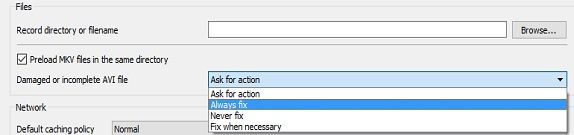
- Launch VLC player. Go to ‘Tools’ and then click ‘Preference’.
- Now from the top, click ‘Input/Codecs’ and then ‘Save’ in the bottom of the preference window.
- Lastly, in the damaged or incomplete AVI file, make selection of the option ‘Always Fix’ from the drop down list provided.

Solution #4. Repair Corrupted or Damaged MOV Files by using Video Repair Tool
In case if none of the above mentioned solutions help you out in fixing your damaged MOV video file, then in such situation, its here highly recommended to make use of Stellar Phoenix MOV Video Repair Software. As being equipped with enhance programming skills, its just the perfect to repair corrupted, damaged, broken, unreadable or unplayable MOV video files on Windows and Mac computer system.
This MOV Video Repair Software can very easily fix video files which got corrupted because of malware/virus attack, compression issues, header corruptions, interruption while transferring videos, codec issues, inappropriate read-write process and etc.
This video repair tool is available for the Windows as well as Mac computer systems. Its compatible with all the latest versions of Windows and Mac Operating system.
It includes capability of repairing/fixing video files stored on PC or Mac internal hard drive, digital camera, SD memory cards, external HDDs, camcorders, iPhone, iPad and various other media storage devices.
Stellar Phoenix Video Repair Software for Windows


Technical Specifications
| Operating System | Windows 10/8/7/XP |
| Processor | Pentium Class |
| Memory | 1 GB RAM |
| Hard Disk | 100 MB of Free Space |
Steps To Repair Corrupted MOV Files with Stellar Phoenix Video Repair Software for Windows
Step 1: Run Stellar Phoenix Photo MOV Video Repair Software.
Step 2: Select the type of multimedia file which you want to recover. Click ‘Next’.


Step 3: Select the location from where you want to recover your lost file.
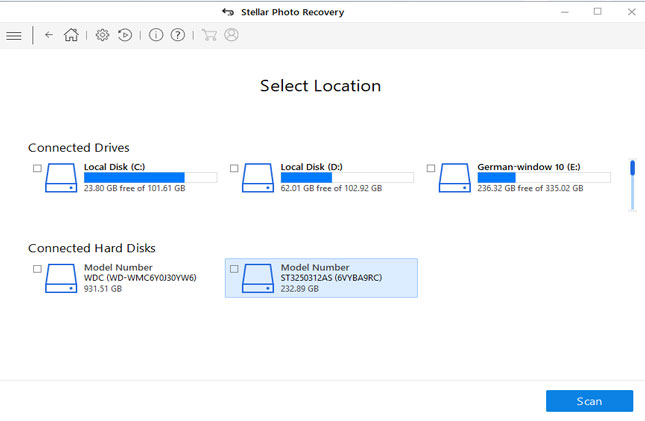
Step 4: Click ‘Turn on Preview’ to show files while scanning.
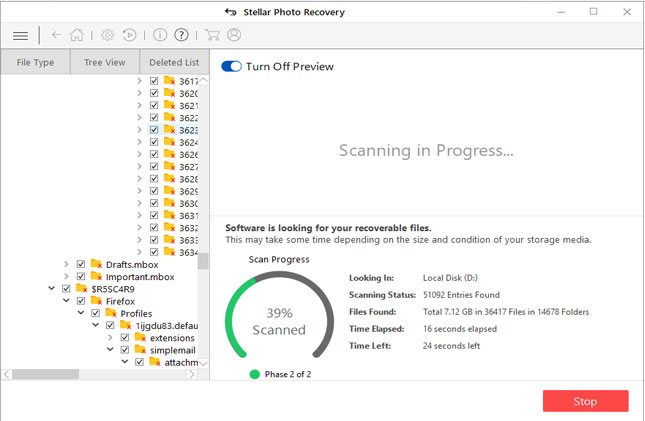
Step 5: Preview all the recoverable files after completion of the scanning procedure. Now view and sort results by ‘File Type’, ‘Tree View’ and ‘Deleted List’.

Step 6: Lastly, select the desired location and click ‘Recover’ to save the recovered data.

Download Stellar For Win Buy Stellar For Win
Stellar Phoenix Video Repair Software for Mac

Technical Specifications
| Operating System | macOS Mojave e10.14, High Sierra 10.13, 10.12, 10.11, 10.10, 10.9, 10.8 & 10.7 |
| Processor | Intel |
| Memory | 1 GB Minimum |
| Hard Disk | 100 MB of Free Space |
Steps To Repair Corrupted MOV Files with Stellar Phoenix Video Repair Software for Mac
Step 1: Download and install Stellar Phoenix Video Repair Software for Mac. Run it on your Mac system.
Step 2: Select the type of multimedia file you wanna recover and then click ‘Next’.

Step 3: Select the location from where you want to recover your lost file.

Step 4: Click ‘Turn on Preview’ to show files while scanning.

Step 5: Preview all the retrievable file after completion of the scanning procedure. Now view and sort results by ‘File Type’, ‘Tree View’ and ‘Deleted List’.

Step 6: Lastly select desired location. Click ‘Recover’ button to save all the recovered data.

Download Stellar For Mac Buy Stellar For Mac