

WhatsApp is very familiar name among all of us. It is a messaging app that provides users a convenient way to be in touch of their friends and family.
But it is very embarrassing when some of our chats or images wiped off because of some reason. The reason may be either the change of your handset or may be anything else.
Have you got with this situation yet, and loosen up all your WatsApp content. Then you must be not familiar with one of the interesting feature of it. WhatsApp is now lashed with the facility of backing up of your content in Google Drive.
If you are unfamiliar with this feature then it’s no big deal. Just be with this blog and you will be able to understand all the terms related with the fact.
How To Use Google Drive For WhatsApp Backup?
Before stepping ahead we recommend you to connect your phone with a Wi-Fi network. Backup files may vary in size and may consume mobile data, causing additional charges. So it is better to learn more about Google Drive backup before proceeding.
- Minimum Requirements Needed
- How to create a Google Drive backup?
- How to restore from a Google Drive backup?
- Configuring the Google Drive back up settings.
- Deleting back up files from Google account.
- Google Drive backup trouble shooting steps.
Minimum Requirements Needed
If you wanted to use Google Drive backup features then you need to have the following points in mind.
- A user must have a Google account activated on their phone.
- There should be a Google play services installed on your phone.
- Enough free Google Drive space for your WhatsApp chats and media, including photos, videos, Voice Messages, and audio files. If not available internally then opt for the external SD card.
How To create Google Drive Backup?
Steps involved while creating a Google Drive backup includes:
- At first Open WhatsApp.


- Then go to Menu Button >> then Settings >> after that Chats and calls >> and last to Chat backup.
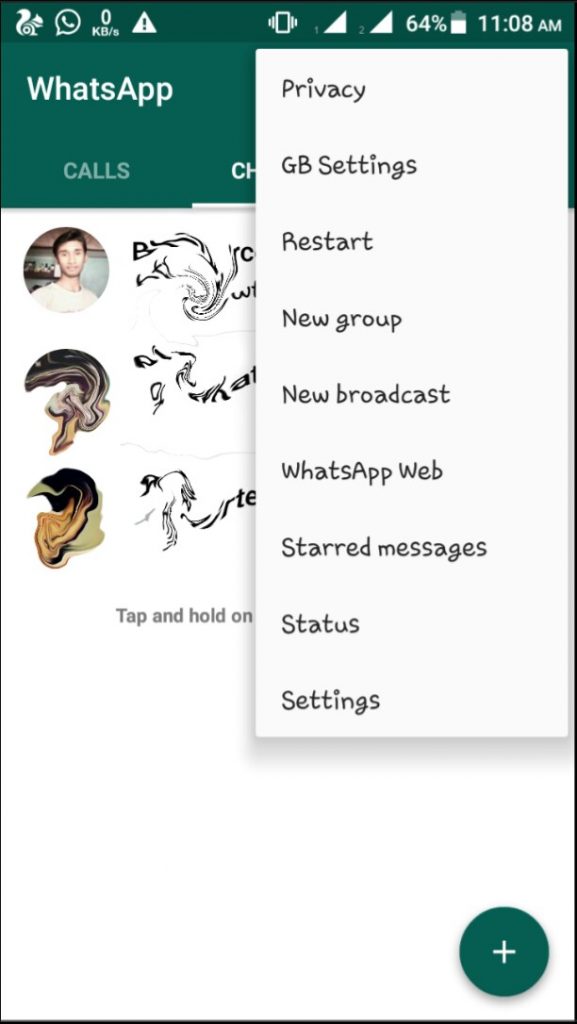

- Then tap on Back up to Google Drive and set up the backup frequency to your liking.
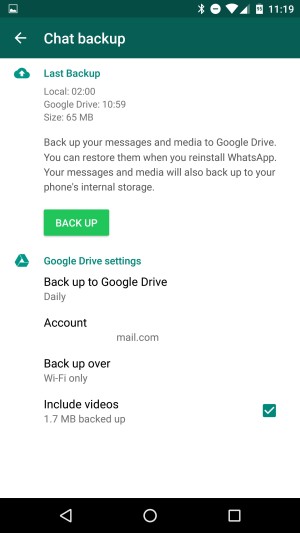

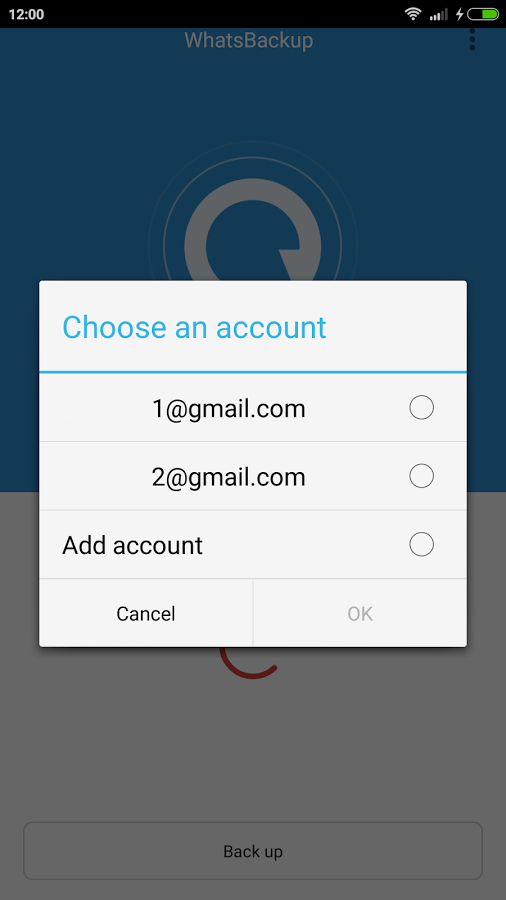
- You will be prompted to select a Google account that you will back up your chat history to. If you do not have a Google account, tap Add account when prompted. Please remember the Google account you are using for the backup.

- Tap on Back up over to choose the network you wish to use for backup. Please note that backing up over cellular may result in additional data charges.
You can do this by following manual steps also which includes:
- Firstly Open WhatsApp by turning On your data.
- Then go to Menu Button >> Settings >> Chats and calls >> Chat backup.
- After that tap on Back up to Google Drive and select a backup frequency other than Never.
- At last tap on Back Up to begin your Google Drive backup. This process may take a few minutes.
Note: Depending upon your chat history, the first complete backup could take a while. We recommend that you connect your phone to a power source. However, subsequent backups are incremental, thus not requiring a completely new backup of all your data every time.
How to restore from a Google Drive backup?
- Make sure the same Google account that was used to perform the backup has been added to your phone.
- Uninstall and reinstall WhatsApp.
- After verifying your number, you will be prompted to restore your messages and media from Google Drive.
- After the restoration process is complete, tap on Next and your chats will be displayed once initialization is complete.
- After restoring your chats, WhatsApp will begin restoring your media files.
Note: If you are installing WhatsApp without any prior backups from Google Drive, WhatsApp will automatically restore from your locally stored backup files.
Configuring the Google Drive back up settings
To change the frequency of your Google Drive backup:
- Firstly Open your WhatsApp.
- After that go to Menu Button >> Then Settings >> Chats and calls >> Chat backup.
- Then tap on Back up to Google Drive.
- After that set the backup frequency to your liking.
To change to which account you want to back up your chat history:
- Open WhatsApp.
- Go to Menu Button >> Settings >> Chats and calls >> Chat backup.
- Tap on Account and select the account you wish to back up your chat history to.
Note: If you change your Google account, you will not be able to access your backups that are linked to a different Google account.
To change the connection you wish to use for backup:
- Open WhatsApp.
- Go to Menu Button > Settings > Chats and calls > Chat backup.
- Tap on Back up over and select the network you wish to use for backup.
Deleting back up files from Google account:
- First of all go to Google Drive (https://drive.google.com) and log in to your Google account. If you are accessing the link from your phone, you have to tap on the Menu Button in the top left corner and then choose to use Desktop Version.
- In the second step click on the Gear icon from the top right >> Then Settings >> after that Manage Apps.
- After that Scroll down until you find WhatsApp in the list. Please note it may take several minutes for WhatsApp to appear on the list so have patience.
- After you see WhatsApp, wait until “Hidden app data” size comes up. This may also take several minutes.
Google Drive backup trouble shooting steps
- Verify that you have a Google account added to your phone.
- Verify that you have enough available space in your Google Drive account to create a backup. You can see how much space is available on your Google Drive at the bottom left of your screen.
- Verify that you have Google Play services installed on your phone. Note: Google Play services are only available on Android 2.3.4 and higher.
- If you are attempting to back up on a cellular data network, make sure that you have data for both WhatsApp and Google Play services. Contact your provider if you are unsure.
- Attempt to do a backup on a different network (for example, try connecting to Wi-Fi if you are unable to back up on a cellular network).
If you are unable to restore a Google Drive backup, please try the following:
- Verify that you are attempting to restore data from the same phone number and Google account that the backup was created on.
- Verify that there is enough room on your phone to restore the backup.
- Verify that you have Google Play services installed in your phone.
- Make sure your battery is fully charged or your phone is plugged in to a power source.
- Make sure your phone is connected to a strong and stable network. If restoring using cellular network does not work, please try Wi-Fi.
To know more about WatsApp related features or any queries related to it you can talk with our experts.
Contact us @ (855) 899-6051
Mail us at info@officialtechsupport.com